
Body: sleep, recovery, heart rate, steps and weight
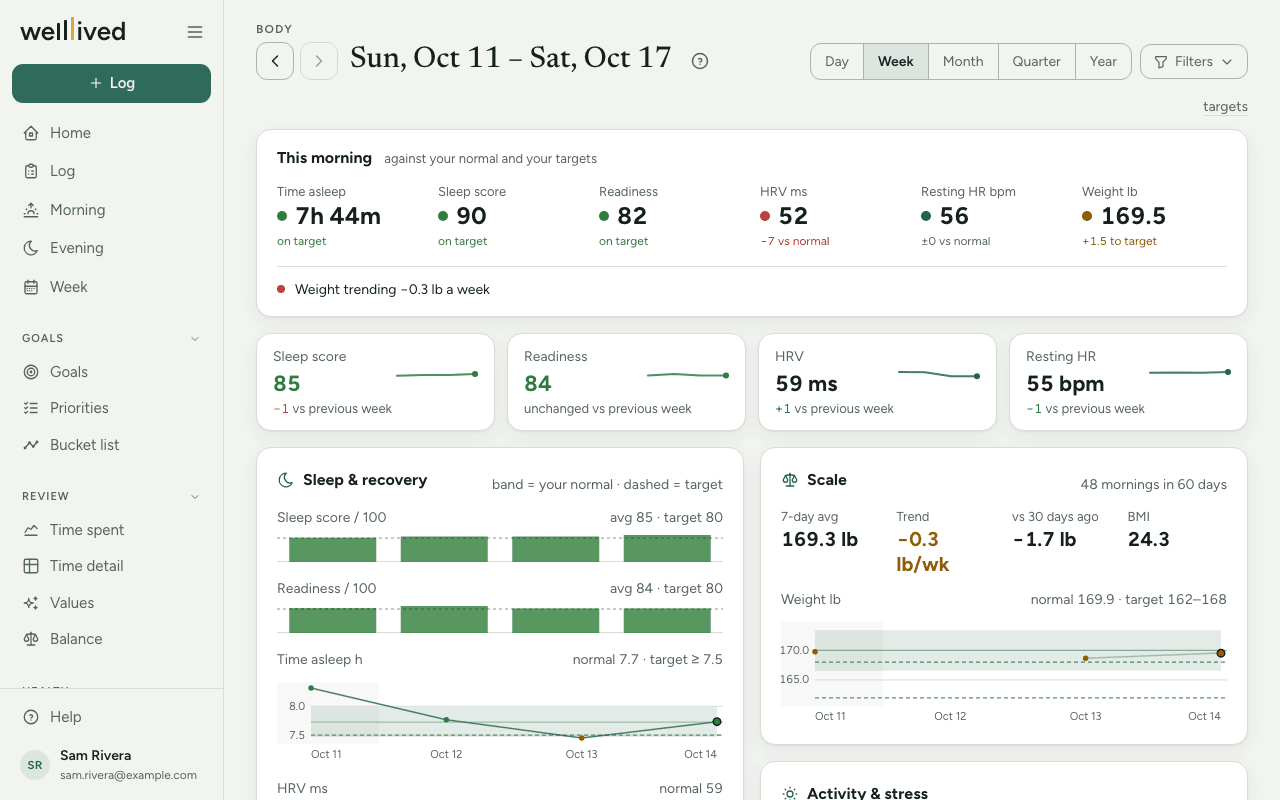
Body shows what your ring, watch or smart scale recorded (sleep, recovery, heart rate, steps and weight) next to two references: what's normal for you, and where you'd like to be.
When to use it
A quick look in the morning tells you how last night went before you plan the day. Once a week, switch to Week or Month to see the trend rather than a single night.
How to use it
Connect a wearable
Body has nothing to show until a device is connected.
- Go to Settings → Health sources (the Health group in the Settings menu).
- Click Connect Oura or Connect Fitbit / Pixel Watch, sign in with that company, and allow access.
- You come back to the same page, and the app pulls up to the last 90 days straight away.
After that, syncing looks after itself: opening Body more than an hour after the last pull refreshes it in the background, and the next visit shows the new numbers. Sync now forces a pull, and Disconnect stops syncing without deleting anything already synced.
Oura supplies the sleep score, readiness and stress minutes. A Fitbit or Pixel Watch fills in heart rate, steps, workouts and time asleep if you wear it at night. If you have a smart scale that syncs to Fitbit or Google Health, its weigh-ins come along with that connection. With both connected, a Both / Oura / Fitbit / Pixel Watch switch appears so you can look at one at a time.
Read the page
- Pick a span with Day, Week, Month, Quarter or Year, and step back and forward with the arrows by the date. A custom range is under Filters.
- The top card (This morning, or the date of the last day in the span) shows six numbers: time asleep, sleep score, readiness, HRV, resting heart rate and weight. The dot is green when it's where you want it, amber when it's close, and red when it's off. The line under each says how far it is from your target or your normal.
- Under those, up to four short notes call out what deserves attention, such as resting heart rate above your normal three nights running, a bedtime that has drifted, or a weight trend.
- The four tiles average the span and compare it with the span before.
- Further down: Sleep & recovery, Scale (7-day average, trend per week, change over 30 days, BMI), Activity & stress, What moves what, Roughest nights and heart rate by activity.
Normal versus target
Every chart carries two references, and they mean different things.
- Your normal is the shaded band. It's worked out from your previous 30 days, so it moves with you.
- Your target is the dashed line. You set it.
When a metric has a target, its colour answers "am I where I want to be?" When it doesn't, the colour only says whether today is unusual for you. That's on purpose: if you've been short of your sleep goal for a month, your normal has quietly moved down with you, and only a target will keep saying so.
Set your targets
- Click targets at the top of Body, or go to Settings → Targets.
- For each metric, fill in at least, at most, or from and to. Leave a side empty for a one-sided target, or both empty to compare against your normal instead.
- Values marked suggested are the app's starting points and already apply. Change them, or save as they are, and they become yours.
- Add your Height while you're there. It's only used for BMI.
- Click Save.
Tips
- Weight arrives from a connected scale only. There's no box to type a weigh-in on this page.
- Weight and height show in the units set in Settings → Profile.
- Roughest nights lists your three lowest sleep scores in the span with what you logged the evening before. Click an entry to open it in the log.
- What moves what looks at the last 90 days and needs at least two weeks of both log and wearable data. It shows correlation, not cause, so read it as a hint worth testing.
- The more of your day you log, the more the heart-rate-by-activity lists have to match against.
Questions
Why is the page empty? No wearable is connected yet, or nothing has synced for the span you're looking at. The page links straight to Settings → Health sources.
It says a sync failed. What do I do? Click sync or reconnect on that line. On the Health sources page, try Sync now; if it still fails, Disconnect and connect again.
Why is a number red when it looks normal to me? It's red against your target, not your normal. If the target no longer fits, change it in Settings → Targets.
What's HRV? Heart rate variability: the small changes in time between heartbeats, measured overnight. Higher is generally better, but it's very personal, which is why the app compares it with your own normal unless you set a target.
Does disconnecting delete my data? No. It stops future syncing. Everything already pulled stays on Body.
Related: Workouts, Nutrition, Labs, Health issues, Log