
Nutrition: your meals, photos and rough nutrition numbers
Nutrition gathers what you ate: every meal you've logged, the photos you took of them, and rough numbers for protein, sugar, saturated fat, fiber and calories worked out from those photos.
When to use it
Taking the photo is the daily habit, at the start of a meal. The page itself is worth a look once a day or once a week, to see whether you're hitting the targets you care about.
How to use it
Photograph a meal
- Before you eat, tap Meal photo at the top of the Log page, or open + Log (the round + on a phone) and choose the Meal photo tab, then Photograph a meal. On a phone the camera opens; on a computer you pick a picture.
- The app reads the plate (it uses AI for this) and opens Is this right? with a description, a list of ingredients and the estimated numbers.
- Fix anything it got wrong. Correct an ingredient or a portion, use + add for something it missed, then Re-estimate from these to redo the numbers for your list. You can also type over the numbers directly.
- If something was hidden or it's packaged food, Add another photo (the small link under the picture) adds another angle or the nutrition label, and the numbers are read from all of them.
- A second plate of the same meal? Use the + Add another photo button at the bottom.
- Tap Looks right when it is.
Put the photo on the meal
You log a meal when it ends, so the photo waits until then. When you next log, the Log form picks up a photo you confirmed during that stretch on its own: it sets the activity to Meals and starts the notes with the description. A photo that wasn't confirmed shows as a chip above the form instead; tap Attach to use it. Nothing is attached until you save the entry.
Read the page
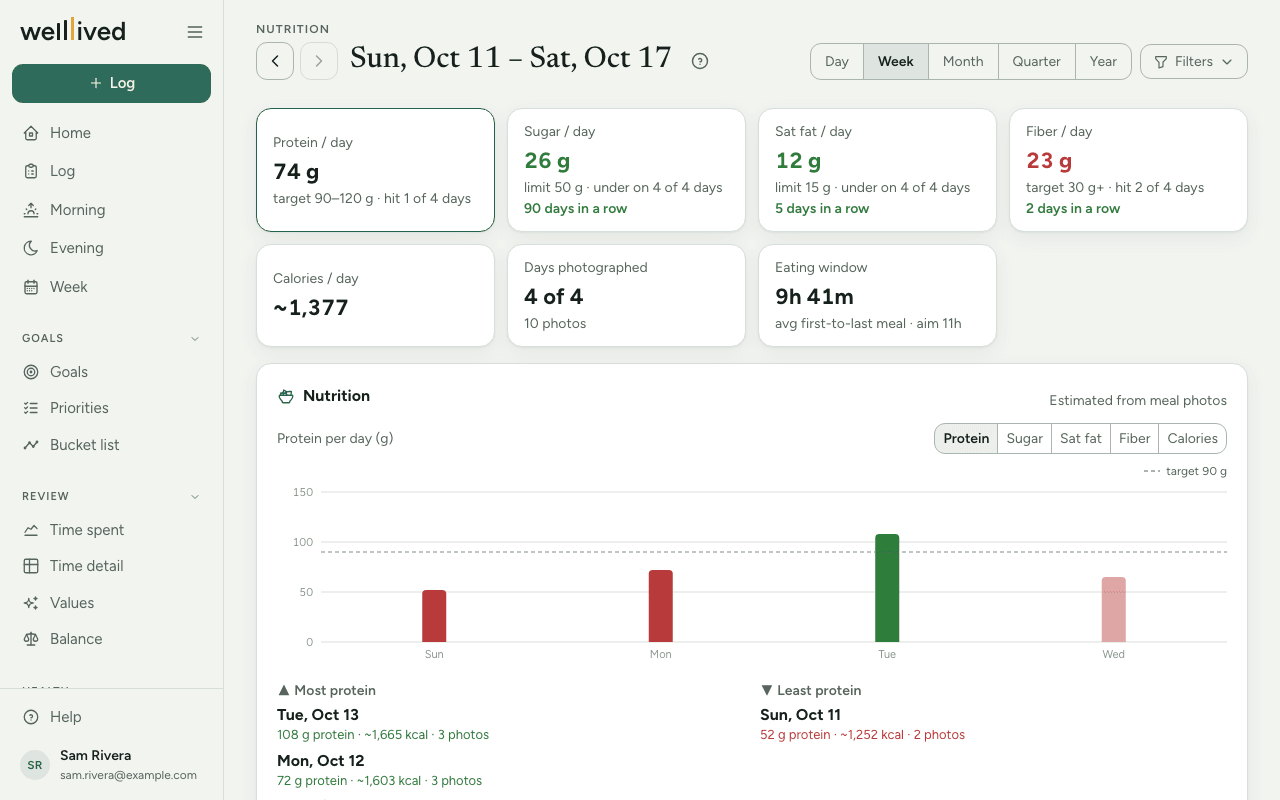
- Choose a span with Day, Week, Month, Quarter or Year, and step with the arrows by the date.
- The tiles show your daily average for Protein, Sugar, Sat fat, Fiber and Calories, how many days hit the target, and a "days in a row" count once you have a streak going. Tap a tile to chart that nutrient.
- The chart shows one nutrient at a time, picked with the switch above it. Each column is coloured against your target (green on target, amber close, red off), the dashed line is the target, and today's column is paler because the day isn't over. Over about two months it switches to weekly averages.
- Under the chart, Most and Least list your highest and lowest days for the chosen nutrient.
- Days photographed and Eating window (first meal to last, from your Meals entries) sit beside the tiles.
- Below, every Meals entry is listed by day, with its photos and the day's totals. List puts photos beside the notes; Photos shows a picture grid.
Fix a photo later
Click any thumbnail to open it. You can edit the description, adjust the numbers, fix the ingredients, Describe again from scratch, Attach to this meal or Detach from entry, or Delete it.
Tips
- Set your own targets in Settings → Targets, in the Food section: protein, sugar, saturated fat, fiber and eating window.
- The numbers are estimates from a picture. They're good for spotting patterns across weeks, less so for counting a single meal to the gram.
- Only days with a photo count towards the averages and the chart. Meals without photos still appear in the list from your notes.
- If photos never made it onto an entry, a link at the top of the page says how many and takes you to them.
- Your meal entries need an activity with the Meals role (set in Settings → Activities). New accounts start with one called Meals.
Questions
Do I have to photograph every meal? No. Meals you log without a photo still show in the list. They just don't add to the nutrient numbers.
The estimate is way off. Can I fix it? Yes. Open the photo, correct the ingredients and tap Re-estimate from these, or type the numbers yourself under adjust.
Why is today's column paler? The day isn't over yet, so it's a running total rather than a finished day.
What's the eating window? The time from the start of your first meal to the end of your last one that day, taken from your Meals entries. Some people like to keep it short; you can set your own aim in Settings → Targets.
I took a photo by mistake. How do I remove it? Open it and tap Delete, then Really delete? to confirm.
Related: Log, Body, Workouts, Projects, activities and life areas