
Log: record your day, entry by entry
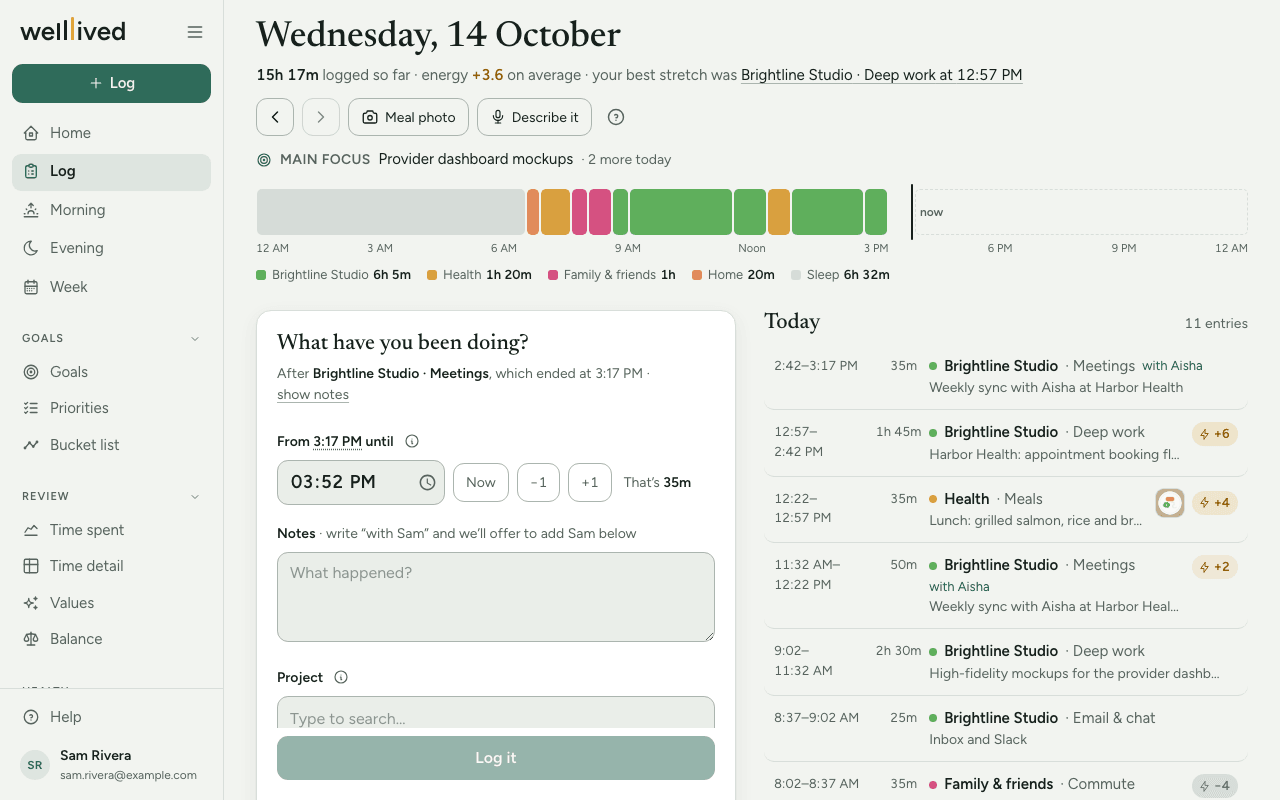
The Log is your day, entry by entry. It's where you record what you just did, fix what you got wrong, and fill in the stretches you missed.
When to use it
Through the day, whenever you finish something, or a few times a day to catch up. Come back to an older day when a report sends you there or you remember something you left out.
How the log works: a chain
Each entry starts where the last one ended. So when you log, you only say until when and what: the start fills itself in. That keeps your day free of overlaps, so no hour is ever counted twice.
The very first entry is the exception. It shows Start my day and asks when that first stretch began. After that, the form starts where your last entry ended. To start somewhere else (say, after an evening you didn't log), tap the underlined start time in From … until.
How to use it
Log what you just did
The form asks What have you been doing? and names the entry it follows ("After Work · Meetings, which ended at 9:15 AM").
- Set the end time in From 9:15 AM until. It starts at the current time; Now, −1 and +1 adjust it, and "That's 45m" shows the length.
- Write Notes if you like (What happened?). Writing "with Sam" offers to add Sam under With.
- Pick a Project (what it was for) and an Activity (what you were doing). Type to search, or tap one of your recent ones under the field.
- Optionally add people, Energy, and the other extras below.
- Press Log it, or Enter from anywhere in the form (Shift+Enter for a new line in the notes).
The form clears and is ready for the next entry, starting where this one ended. If you close the page mid-entry, the form offers Unsaved text from earlier · restore · discard next time.
The optional extras
- With: who you spent the time with. Type a name to pick from your People. Names found in your notes appear as + Name? chips; a name not yet in People appears as + Name — new?, which lets you add them. Each person has a with / about switch: with counts as time together, about means the entry concerned them but they weren't there.
- Energy: how the block left you, from −10 (drained) to +10 (energised). Type a number or drag the slider. Leave it empty if you're not sure; unrated entries are never counted as zero.
- On it or in it?: for projects marked as generating income. On it is working on the business or your life (strategy, planning, building systems); In it is doing the work itself. Tap the selected one again to clear it.
- Worth per hour: what you'd pay someone to do this instead of you. Tap one of your amounts, or … for another. It's off until you switch on Track what your time is worth in Settings → Profile, where you also pick your currency and the amounts offered. It then shows for the activities set to Ask what it's worth in Settings → Activities (work, chores and errands to start with; not sleep, meals or time with people), and on any entry that already has an amount.
- + More fields: a second Project 2 and Activity 2 for time that really was two things at once, and Important vs urgent.
Filing suggestions
On some accounts, once you've written a sentence of notes and paused, the app uses AI to suggest the project, activity and other fields based on how you've filed similar entries. It only fills fields you've left empty, marks each one ✦ suggested, and offers people as chips rather than ticking them. Change anything you like; your choice always wins.
Chips that read your notes
The notes do a little extra work, but nothing is saved until you tap a chip and log the entry.
- Workouts: when the activity has the Workouts role, write your sets in the notes, like "pushups 15 15 12, squats 3x10 @ 95". Each exercise appears as a chip; tap to keep it, ✎ to edit the sets. ↻ Repeat stages your last workout in one tap.
- Books: mention a book you're reading and a chip offers to record how far you got ("Title → p. 78?").
- Shows: mention a series and a chip offers to move it on ("Show → S2E5"); "watched" plus a new title offers to add it to Movies.
Meal photos
Press Meal photo in the Log's header as you sit down to eat. The app reads the plate and asks Is this right?, where you can fix the description, ingredients and numbers, then press Looks right. The photo waits as a chip on the form. When you log the meal it's attached, the Activity is set to your Meals activity, and the description goes into the notes. A photo you confirmed during the block you're logging is attached for you. See Nutrition.
Describe it instead
Describe it (in the header, on accounts that have it) lets you say or type everything since your last entry in your own words: "An hour on the deck, then a call with Jen about pricing, draining. Lunch at 1." Press Speak to dictate, if your browser supports it, then Draft entries. The app uses AI to draft one entry per activity. Check each one's end time, project, activity, people and energy, then press Save all (just Save when there's one). ← Change what I said goes back, and nothing is saved until you press Save.
Edit an entry
- Tap any entry in the list. It opens in place.
- Change the times, energy, project, activity, notes, people or anything else, then Save. Delete asks Really delete? before it goes.
Because the log is a chain, moving an end time also moves the start of the entry right after it (and the other way round). The neighbour flashes so you can see it moved. If a change would swallow the neighbour whole, the app refuses and names the entry, so you can edit or delete that one first.
Fill a gap or insert between entries
- A stretch you didn't log shows as a quiet line, like "45m not logged, 9:00–9:45 AM · fill in?". Tap fill in? to log just that stretch.
- To squeeze something in where two entries meet, hover the line between them (it's always faintly visible on a touch screen) and press the +. The entries on either side make room.
Move between days
Use the arrows beside the date to step back and forward, and Today to come back. The ribbon at the top shows the day hour by hour, coloured by project, with a summary underneath. The form only appears on today; older days are for reading, fixing and filling in.
Tips
- Log at natural breaks (after a meeting, before lunch) and it takes seconds.
- Hover an entry's ribbon block to see what it was.
- Unlogged gaps are fine. They're left out of your totals rather than counted as anything.
- Travelling? If your device's clock differs from your log's, the app offers to Switch time zones. Entries already logged keep the time they were logged in.
Questions
Why can't I create a new project or activity from the Log? On purpose: a typo would become a permanent near-duplicate. Add them in Settings → Projects and Settings → Activities. See Projects, activities and life areas.
It says my most recent entry is dated in the future. New entries continue from your newest one, so a mistyped date blocks the form. The message links straight to that entry; fix its date or delete it.
Can I log something that happened yesterday? Yes. Go to that day, then use fill in? on the gap, or the + between entries. If yesterday ended unlogged, tap the underlined start time on today's form to start fresh.
Why does the next entry's time change when I edit one? They share a boundary. Moving one end of it moves the other, so there's never an overlap or a sliver of double-counted time.
What does "That's 0m" mean? You've just logged, so the new entry would have no length yet. Wait a minute or set a later end time.
Where's the Log's floating + button? On the Log page the form is right there, so the + isn't shown. Everywhere else it opens the same form in a sheet.
Related: Home, Projects, activities and life areas, Nutrition, Workouts, People, Time detail, Getting started