
Time detail: search and filter every entry
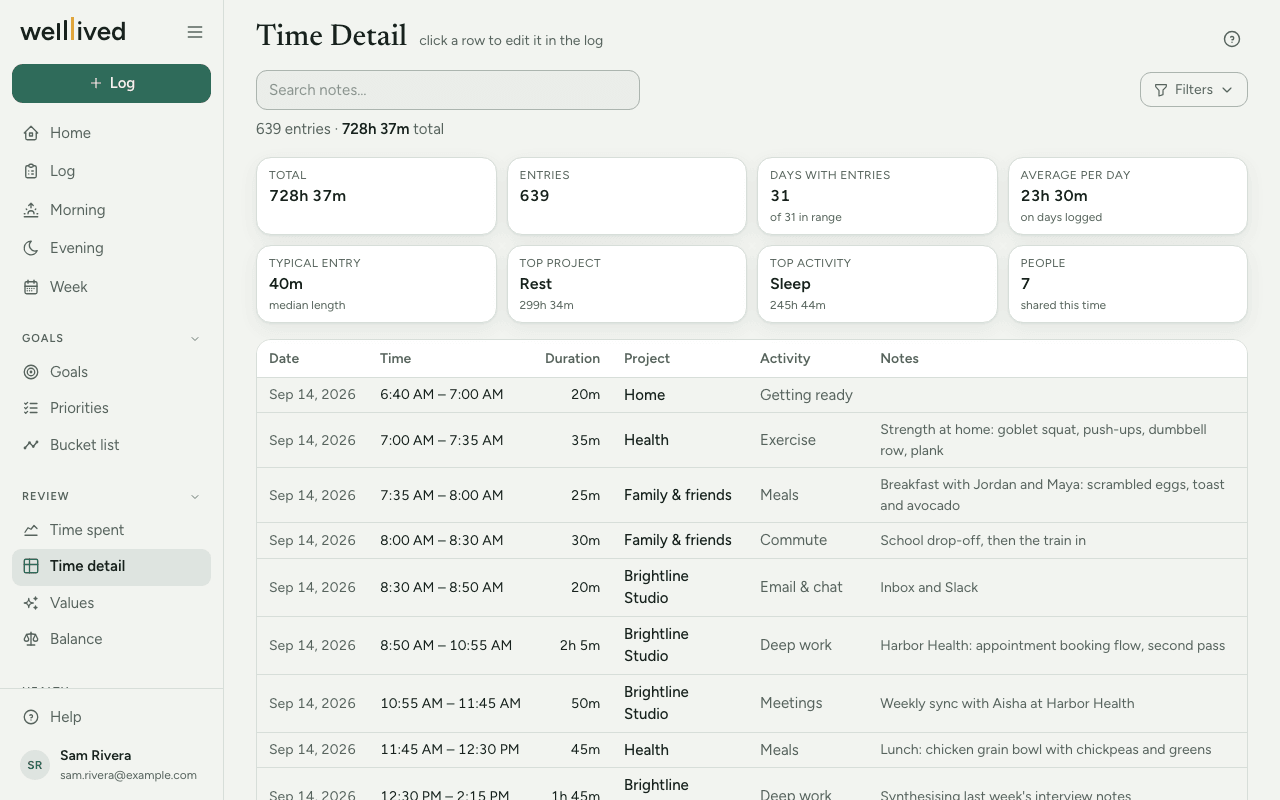
Time detail is every entry in your log as one long table you can search and filter. It answers the questions the charts can't, like "when did I last work on the garden?" or "how much time did that project really take?"
When to use it
Use it whenever you want the entries behind a number: after a week's review on Time spent, when you're hunting for something you wrote in a note, or when you need a total for one project over a stretch of dates.
How to use it
Search your notes
- Open Time detail from the Review group in the menu.
- Type a word or phrase into Search notes… and press Enter. The table shows only entries whose notes contain it.
- Clear the box to see everything again.
Filter by project, activity or dates
- Press Filters to open the panel.
- Pick a Project or an Activity. The table updates as soon as you choose. Use the × in the box to go back to all of them.
- Set the Dates (from and to) and press Run. Without dates, the page shows the last 30 days.
- Each filter you've applied shows as a chip beside the Filters button. Click a chip's × to remove it.
Read the summary
Above the table you'll see how many entries match and their total time, then a row of tiles: Total, Entries, Days with entries, Average per day (on days you logged), Typical entry (the median length), Top project, Top activity, and People (how many different people shared this time with you).
These describe everything that matches your filters, not just the rows on screen.
Fix an entry
Click any row. It opens that entry in the Log, ready to edit.
Tips
- Filters and the search combine. Searching "dentist" inside your Health project over the last two years is one search.
- Turn on include secondary under Filters to match entries where the project or activity is in the second slot too. Two extra columns, Project 2 and Activity 2, appear in the table.
- The table loads the first 300 entries. Press Show more at the bottom for more.
- Coming from Over time on Time spent? The project or activity and the date range are already filled in.
Questions
Why doesn't the table total match what I see on Time spent? Time detail filters by the day an entry starts, while Time spent clips entries at the edges of its period. An entry that runs past midnight can land differently. Second projects and activities only count here when include secondary is on.
Can I search for a person? Search looks at the notes text, so it finds a name you wrote there. To see all the time you spent with someone, open them on the People page instead.
Can I export this table? Not from this page. You can download all your data, including the time log as a spreadsheet, from Settings → Data & account. See Your data.
Why does the search miss some entries? It only searches notes. An entry with no notes is found by its project, activity or dates, not by the search box.
Related: Time spent, Log, People, Your data