
Home: today and this week at a glance
Home is today and this week at a glance: what you've logged, how your life areas are doing against what you wanted, and who's due a hello. It's also where the app opens, with logging one tap away.
When to use it
Whenever you open the app. Glance at it in the morning to see the week so far, and come back through the day to log what you just did.
How to use it
Read the top
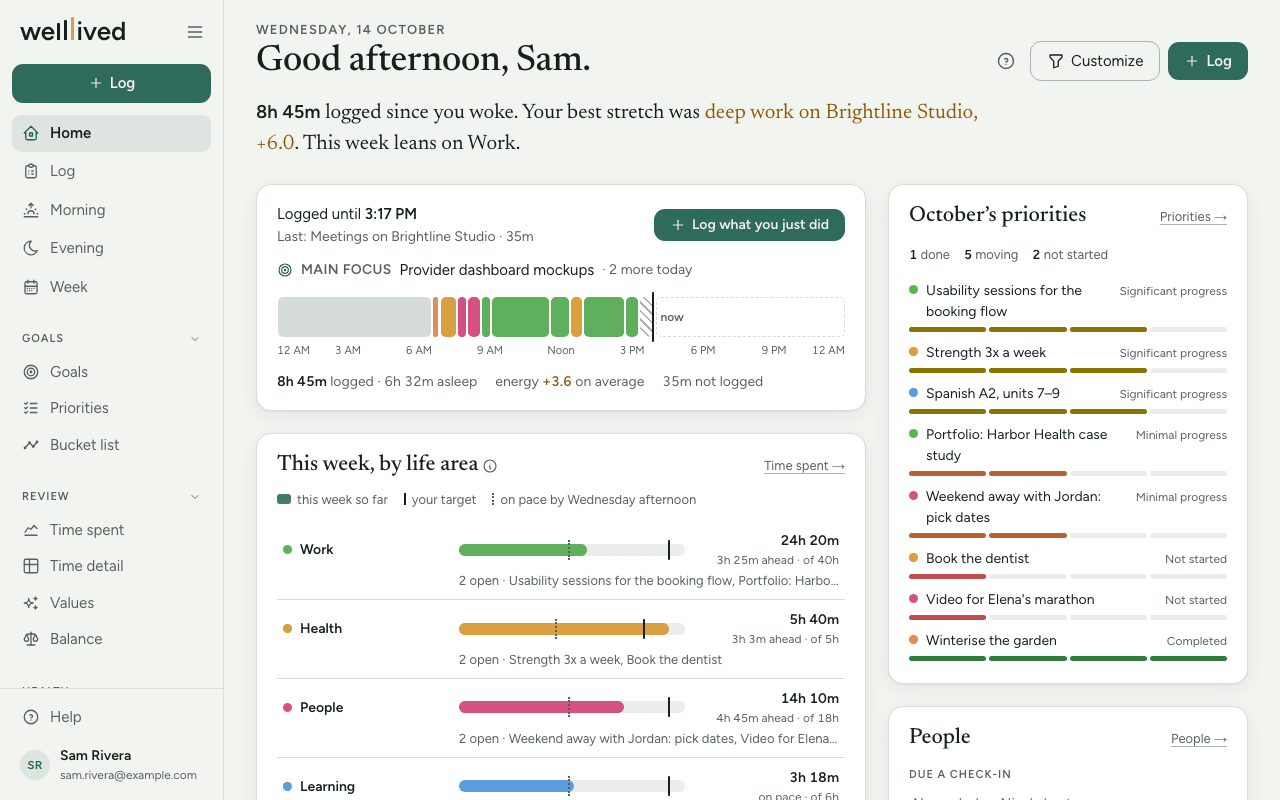
Under the greeting is a short reading of your day and week in plain words: how much you've logged since you woke, your best-feeling stretch so far, which area the week leans on, and any area that's behind the time you set for it. It only says what your log can back up, so on a quiet day it's short.
Today
The Today card shows Logged until with the time your last entry ended, and a Last: line naming it.
- Log what you just did opens the log sheet (see below).
- If you've set a main focus on Morning, it shows here too. Tap it to go to Morning, or Set today's main focus → if there isn't one.
- The ribbon is your day hour by hour, coloured by project. The hatched stretch at the end is time since your last entry that isn't logged yet; hover it for the details.
- Underneath: hours logged and asleep, your average energy, and how much is not logged.
On a brand-new account this card just says Start my day.
This week, by life area
One bar per life area, filled with this week's hours so far (sleep is left out).
- A solid mark is the weekly target you set for that area.
- A dotted mark is where you'd be by now on that pace, or, for an area with no target, your usual amount by now (based on the last four weeks).
- On the right, the hours and a word on how you're doing: on pace, 2h ahead, 3h behind, or over normal / under normal when there's no target.
- A line under a bar lists that area's open priorities this month, in amber when the area is behind or has had no time yet.
The ⓘ beside the title explains the marks. Time spent → opens the full report. To set targets, see Projects, activities and life areas.
Habits
Activities you've given a time target. A daily target shows the week as seven squares (filled when you hit it, tinted when you did some). A weekly target is one bar with the same dotted pace mark. Set a target or Edit targets goes to Settings → Activities.
What lifts you, what drains you
This week's activities with the best and worst average energy: up to three that lifted you and two that drained you. It fills in once you've rated some entries' Energy on the Log.
This month's priorities
Your priorities for the month, each with a four-step bar from Not started to Completed, and a count of how many are done, moving and not started. Priorities → goes to the full list.
People
Due a check-in lists up to three people whose check-in date has passed, most overdue first, and Birthdays this week anyone with a birthday in the next seven days. Tap a name for their page, or Draft to jump to their Keep in touch card.
Small tiles
One tile for each part of the app you use, once there's something to show: Last night (from a connected ring or watch), Values, Strength this week, Morning journal, Reading, Protein today, and A year ago today (a line from your log or a highlight). Each one links to its page.
Customize Home
- Press Customize (on a phone, Edit).
- Each section you can remove gets a dashed outline and a Hide chip. Press it on anything you don't want.
- Press Done.
Hidden sections are listed at the bottom of the page with Show them again. Today and This week, by life area are the heart of the page and always stay.
Log from Home
Press Log in the header (on a computer) or the floating + (on a phone). The sheet asks What have you been doing?, shows Last: with when your last entry ended, and Today so far if you want to see the day's list. It has up to three tabs:
- Describe it: say or type what you did since your last entry, in your own words. The app uses AI to draft one entry per activity, and you check them before anything is saved.
- Fill it in: the same form as the Log page.
- Meal photo: photograph a meal as you sit down. It waits and goes on the meal's entry when you log it.
See Log for the details of each.
Tips
- If the hatched "not logged yet" stretch is long, that's your cue to press Log what you just did.
- Without any targets, the week view still works: it compares each area with your own normal.
- Hover the bars and squares for exact numbers.
- Hiding a section also skips loading it, so a trimmed Home is a slightly faster Home.
Questions
Why is one of my life areas missing from the week? Areas show through their projects. If no project belongs to an area, it has nothing to count. Assign projects to areas in Settings → Projects.
What does "No life area" mean on the week view? Time logged on projects that don't belong to any area. Give those projects an area and it moves into the right row.
Why don't I see Describe it or Meal photo in the sheet? They depend on features that aren't turned on for every account. Fill it in is always there.
Why are some tiles missing? A tile appears only for parts of the app you have and once there's something to show. Last night needs a connected ring or watch, and A year ago today needs a year of history.
Does "What lifts you" cover all time? No, just this week. Time spent has the longer view.
Related: Log, Projects, activities and life areas, Time spent, Priorities, People, The daily and weekly rhythm