
Time spent: where your hours go
Time spent is where your log turns into a picture: where the hours went in a day, week, month, quarter or year, how that compares with your usual, and which activities lift your energy or wear it down.
When to use it
Most people open it at the end of the week, when the week is complete enough to say something. A quick look mid-week works too, since every comparison is against your usual by now, not against a whole week.
How to use it
Pick a period
- Open Time spent from the Review group in the menu.
- Choose Day, Week, Month, Quarter or Year at the top right. Weeks run Sunday to Saturday.
- Use the arrows beside the date to step back or forward. A link such as this week appears when you've stepped away, to bring you back.
- For any other span, open Filters and set a Custom range, then press Show.
Read the page from the top
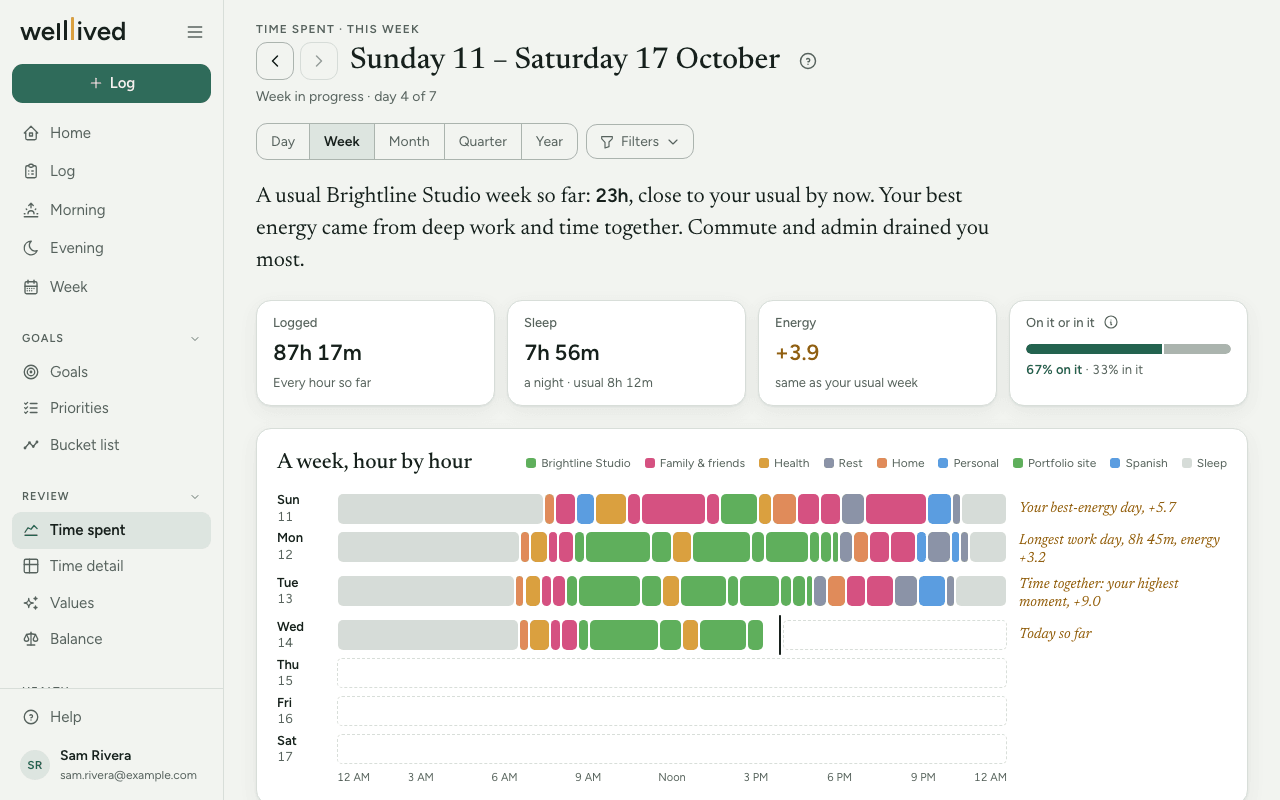
- The reading is a few sentences at the top that say what stood out: your main project against its usual, what grew or shrank, and what lifted you.
- The four tiles: Logged (and how much wasn't), Sleep a night against your usual, Energy for the period, and On it or in it, the split between working on things and doing them.
- A week, hour by hour draws each day as a 24-hour ribbon coloured by project, with sleep in a quiet grey. Hover a block to see what it was, and click it to open that entry in the Log.
- What drains you, what lifts you ranks your activities by their average energy, highest first.
- Where the time went lists your projects with the change against your usual. Use Group by to switch between Projects and Life areas. In the life-area view, an area with a weekly target shows how far ahead or behind it is.
- Over time shows the last 12 weeks or 12 months as small bar charts, one row per project, life area or activity. Click a row's name to see every entry behind it in Time detail.
- Your energy, week by week is your weekly average energy as a line, with your best and worst weeks marked.
- In detail has the full tables, By project and By activity, plus the On it or in it card.
Break one project down
Click a project in Where the time went or in the By project table. The By activity table then shows only that project, so you can see, say, how much of a work project was meetings. Click the project again (or show all) to go back.
Tips
- Rate the energy of your entries when you log them. The energy sections stay empty until you do, and a faded bar means fewer than 3 rated blocks, so read it as a hint rather than a pattern.
- Give every project a life area in Settings → Projects. Time on a project with no area shows as No life area and can't count toward any target.
- Set weekly targets per area in Settings → Life areas; the Set targets link under "Where the time went" goes straight there.
- The sleep figures come from whichever activity has the Sleep role in Settings → Activities.
- Under Filters, Compare weeks (or months, and so on) sets how many past periods make up "your usual". include secondary counts second projects and activities as well.
- The On it or in it split only appears once at least 10% of the period's time is tagged.
Questions
Why does "Logged" say some time wasn't logged? It counts the hours that have passed in the period that no entry covers. The stretch since your last entry ended isn't counted as a gap, since you'll log it when it ends.
What does "vs your usual" mean? It's the average of your recent complete periods, scaled to how far through this one you are. On a Wednesday afternoon you're compared with a usual week's Wednesday afternoon, not a whole week.
Why is my energy chart empty? Nothing in this period has an energy rating yet. Add one on an entry in the Log and it shows up here.
What's the "Cheapest to hand off" list? If you track worth per hour (Settings → Profile) and set it on entries tagged In it, this card prices that time in your currency and lists the activities that would cost least to have someone else do.
Can I see the individual entries behind a number? Yes. Click a row name in Over time, or use the Time detail link at the bottom of the page.
Related: Time detail, Log, Projects, activities and life areas, Home