
Books: your reading list and reading record
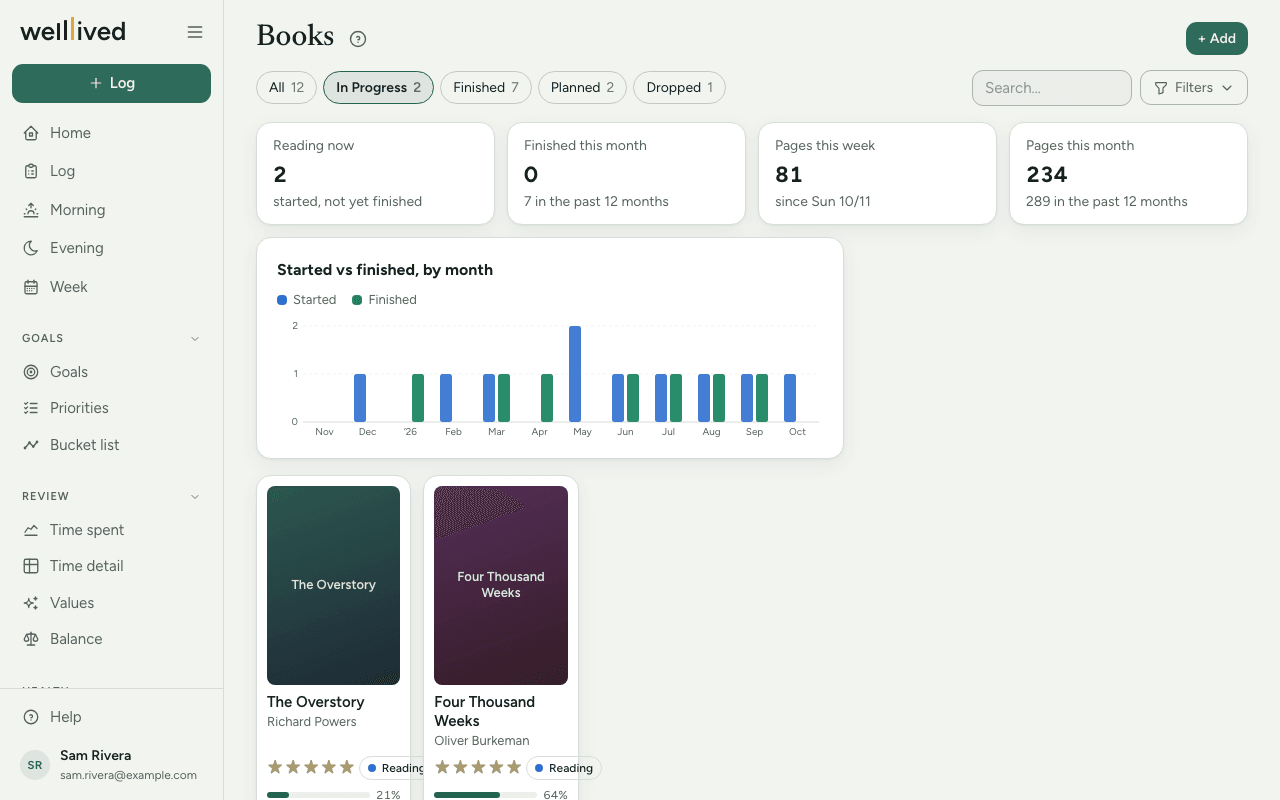
Books is your reading list and reading record in one place: what you're reading now, what's next, what you finished, and how many pages you get through in a week.
When to use it
Add a book when you start it (or the moment you decide you want to read it), and come back when you finish. In between, the Log can keep your page count up to date for you.
How to use it
Add a book
- Open Books from the Life group in the menu.
- Press + Add.
- Type the Title (and the Author if you know it), then press Auto-fill from title. It looks up the cover, the author and the page count, and only fills fields you've left empty.
- Add whatever else is useful: Category, Started, Finished, Rating, Method (Kindle, Audible, paper and so on), who you're Reading with, and why you're reading it.
- Save.
To change the cover, click it in the editor and pick an image, or drag one in. Images dragged from another browser tab work too.
Status follows the dates
You don't set a status by hand. A book with a Started date is In Progress, one with a Finished date is Finished, one with a Dropped on date is Dropped, and one with no dates yet is Planned. The chips along the top filter by status.
Track your pages
In the editor, Pages read and Total pages sit either side of a slider. Each time you change pages read, the app notes how far you got that day, which is what the Pages this week and Pages this month tiles count.
You can also do it from the Log: when the notes of an entry mention a book you're reading, a chip such as "Book title → p. 142?" appears. Tap it, adjust the page if you need to, and it's recorded when you save the entry.
Plan what's next
Choose Planned, keep the cards view, and drag the cards into the order you want to read them in.
Look back
The tiles show Reading now, Finished this month, Pages this week and Pages this month, and a chart compares books started and finished each month. Under Filters you can set a Minimum rating, pick a Category, change the Sort and switch between Cards and Table.
Click a card to see the book's details. Edit is inside.
Tips
- Run Auto-fill from title before typing anything else. It never overwrites what you've entered.
- Leave Reading with empty when you're reading on your own. If you've set up a household in Settings → People, one tap adds them all.
- Fill in Why? What I want to get out of it when you start, and What I got out of it when you finish. Reading the two side by side later is surprisingly good.
- To stop a book without losing it, set Dropped on. The Dropped chip appears once you have one.
Questions
Why is "Pages this week" zero when I've been reading? It counts changes to Pages read. If you haven't updated the page in the editor or from the Log this week, there's nothing to count yet.
Can I track audiobooks? Yes. Set the Method to the app you listen in. Pages still work as a measure of how far through you are.
How do I delete a book? Open it, press Edit, then Delete and Really delete?.
Auto-fill found the wrong book. What now? Clear the fields it filled, add the author, and try again. Or just type the details yourself.